

Price Block
Price Block
The Price Block shows a live product price that updates automatically when shoppers select one of your offer blocks, such as Bundle or Quantity Break. This helps customers immediately see the correct price, savings, and optional unit price for the offer they choose.
Use the Price Block when you want the displayed product price to stay in sync with your offer selection.
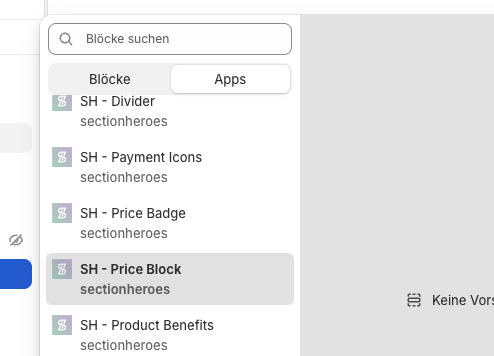
Add the Price Block to your product page
What shoppers will see
When a shopper selects a different offer, the Price Block updates automatically. Depending on your settings, it can show:
- The current product price
- A compare-at or original price
- A savings badge
- A unit price
- A tax or shipping line below the price
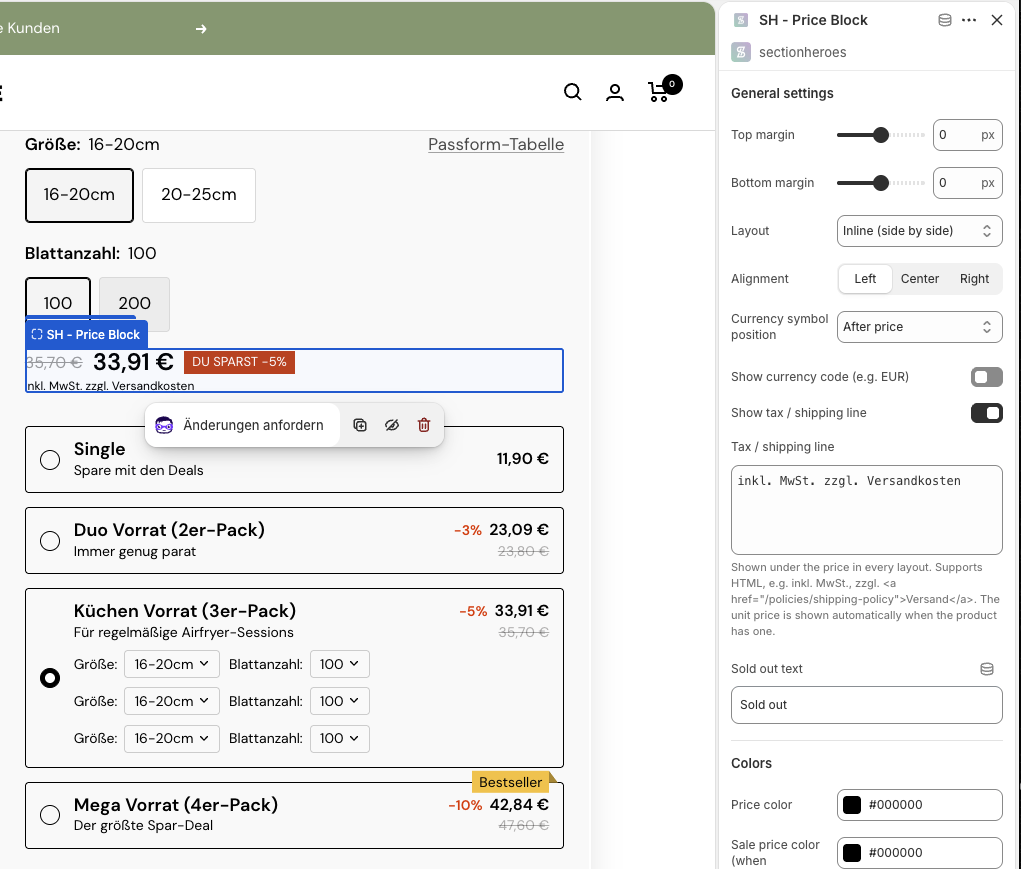
What you can customize
After adding the block, you can adjust both the layout and the information shown to customers.
- Spacing: Set top and bottom margins.
- Layout: Choose how the price elements are arranged.
- Alignment: Align the block left, center, or right.
- Currency display: Control where the currency symbol appears and optionally show the currency code.
- Tax and shipping line: Show an additional line below the price, such as tax or shipping information.
- Colors and typography: Adjust text colors, font sizes, and font weights.
- Sold out text: Customize the message shown when a product is unavailable.
Configure the tax and shipping line
You can show a helpful line beneath the price, for example:
inkl. MwSt. zzgl. VersandkostenThis text appears below the price in every layout. You can also include HTML if needed.
If the product has a unit price, the unit price can also be shown automatically by the block.
Badge settings
The badge settings are one of the most useful parts of the Price Block. You can use badges to highlight savings or show extra pricing details directly next to the price.
Available badge content options include:
- Off — hides the badge
- Plain Text — shows custom text that you enter manually
- % Saved — shows the customer's savings as a percentage
- $ Saved — shows the customer's savings as a money amount
- Unit price — shows the unit price when available
For each badge, you can customize:
- Text
- Background color
- Text color
- Corner radius
- Font size
You can also enable a second badge if you want to show more than one detail at the same time, such as savings plus unit price.
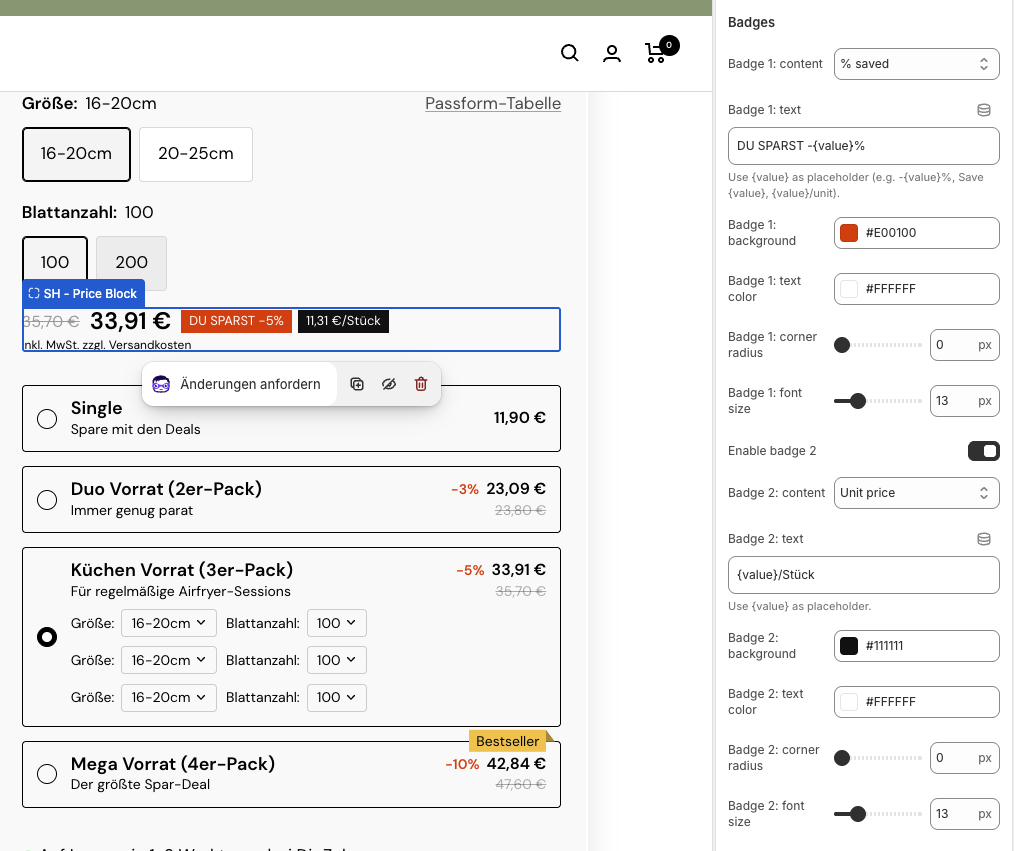
Supported badge placeholders
Depending on the badge type, you can use placeholders in the badge text:
{value}— inserts the calculated value{value/unit}— inserts the unit-based value when available
Examples:
DU SPARST {value}%{value}/Stück
Hide the theme's native price
If your product page already shows the theme's own price, you may want to hide it so customers only see the app-controlled Price Block.
Use the Hide native theme price setting to hide the price on this product.
If your theme uses a custom price area, you can also add custom CSS selectors to target the price element that should be hidden.
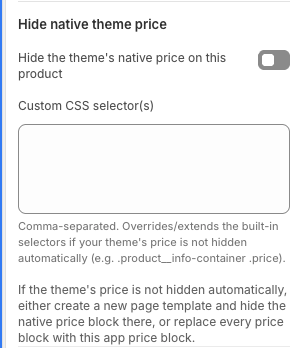
If the theme's price is not hidden automatically, you can:
- Create a new page template and hide the native price there, or
- Replace every price block in that template with this app's Price Block
Best practices
- Place the Price Block close to the offer selector it responds to.
- Use badges sparingly so the main price stays easy to read.
- Show the tax or shipping line if shoppers in your market expect that information near the price.
- Hide the native theme price if it creates duplicate pricing on the page.
- Preview your product page on desktop and mobile to confirm the layout fits well.
Summary
The Price Block keeps your product price in sync with the offer a shopper selects. You can control its layout, alignment, badges, unit price display, tax or shipping text, and sold out message. When set up well, it gives customers a clearer and more accurate pricing experience on your product page.