

Price Badge
Price Badge
Use the Price Badge app block to show a small, customizable price message on your product page. This is useful for highlighting pricing details such as price per application, variant-specific pricing notes, or values calculated from your active offer.
The Price Badge is added in your Shopify theme editor and appears on the product template wherever you place the app block.
What the Price Badge can show
- Static text for a fixed message
- Variant metafield content to show different badge text for each variant
- Auto-calculated values based on the active offer on the product page
Add the Price Badge to your product page
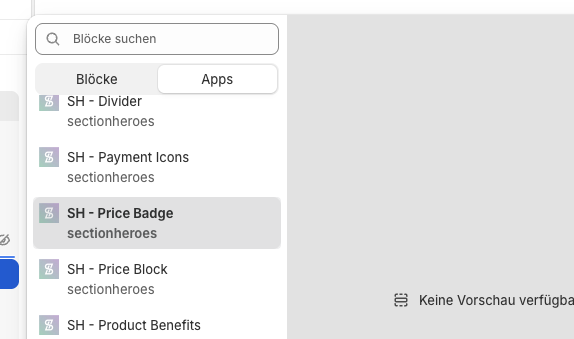
Choose the badge content
The Bubble content setting controls where the badge text comes from.
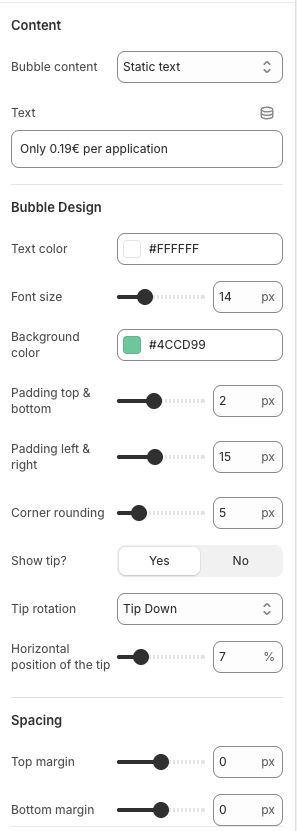
Option 1: Static text
Choose Static text when you want the same message to appear for every product or variant in that template section.
- Enter your message in the Text field
- Example:
Only 0.19€ per application - Use this when the wording does not need to change by variant or offer
Option 2: Variant metafield
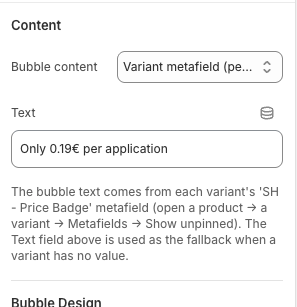
Choose Variant metafield when each variant should have its own badge text.
- The badge reads its text from each variant's SH - Price Badge metafield
- If a variant has no value, the Text field is used as a fallback
- This is ideal when different sizes, packs, or formats need different pricing notes
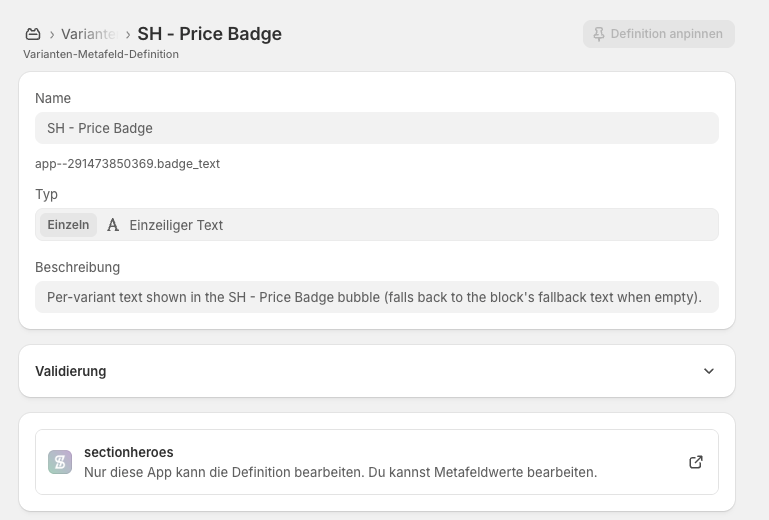
To use this option:
- Open a product in Shopify
- Select a variant
- Find the SH - Price Badge metafield
- Enter the text you want shown for that variant
Option 3: Auto-calculated from active offer
Choose Auto-calculated from active offer when the badge should show a value based on the offer currently applied on the product page.
- Select the Calculated value you want to display
- Use Calculated text to control how the message is written
- Insert
{value}where the calculated number should appear
Example:
Only {value} per applicationIf the calculated value is 0.19€, the badge will display:
Only 0.19€ per application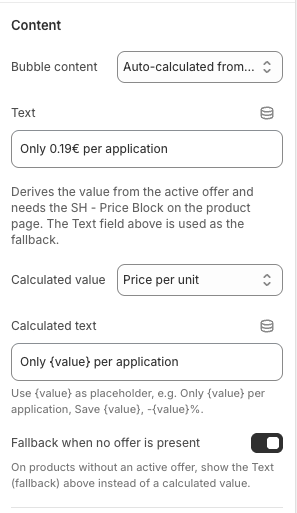
Fallback behavior
The Text field can also act as a fallback in these cases:
- A variant metafield is empty
- No active offer is available for the current product
If you enable Fallback when no offer is present, the badge shows the fallback text instead of leaving the calculated badge empty.
Customize the badge design
You can adjust the badge appearance directly in the app block settings.
- Text color to match your theme
- Font size for readability
- Background color for emphasis
- Padding to control spacing inside the badge
- Corner rounding for a softer or sharper shape
- Show tip to add or remove the speech-bubble pointer
- Tip rotation and horizontal position to place the pointer where you want it
- Top margin and bottom margin for spacing around the badge
Best practices
- Place the badge close to the product price so it is seen together with pricing information
- Use static text for simple, repeatable messages
- Use variant metafields when each variant needs its own wording
- Use auto-calculated content when the message should reflect the active offer automatically
- Always set a fallback text so the badge still shows something useful when data is missing
Troubleshooting
- Make sure the SH - Price Badge block has been added to the correct product template
- Confirm the block is not hidden inside a collapsed section in your theme
- Click Save in the theme editor after making changes
- Check that Bubble content is set to Variant metafield
- Make sure each variant has a value in the SH - Price Badge metafield
- If a variant has no value, the badge will show the fallback text from the Text field
- Check that the product has an active offer available on the page
- Confirm you included
{value}in the Calculated text field - Enable Fallback when no offer is present if you want the standard text to appear instead