

How to create an A/B test
A step by step guide to setting up an A/B test on your Bundles, Upsells and Quantity Breaks, reading the results and picking a winner.
Run an A/B test on your offers
A/B testing lets you compare two or more versions of a Bundle, Upsell or Quantity Break on your live store, and let real orders decide which one earns more. This guide walks you through setting one up, reading the results, and picking a winner.
Create your test
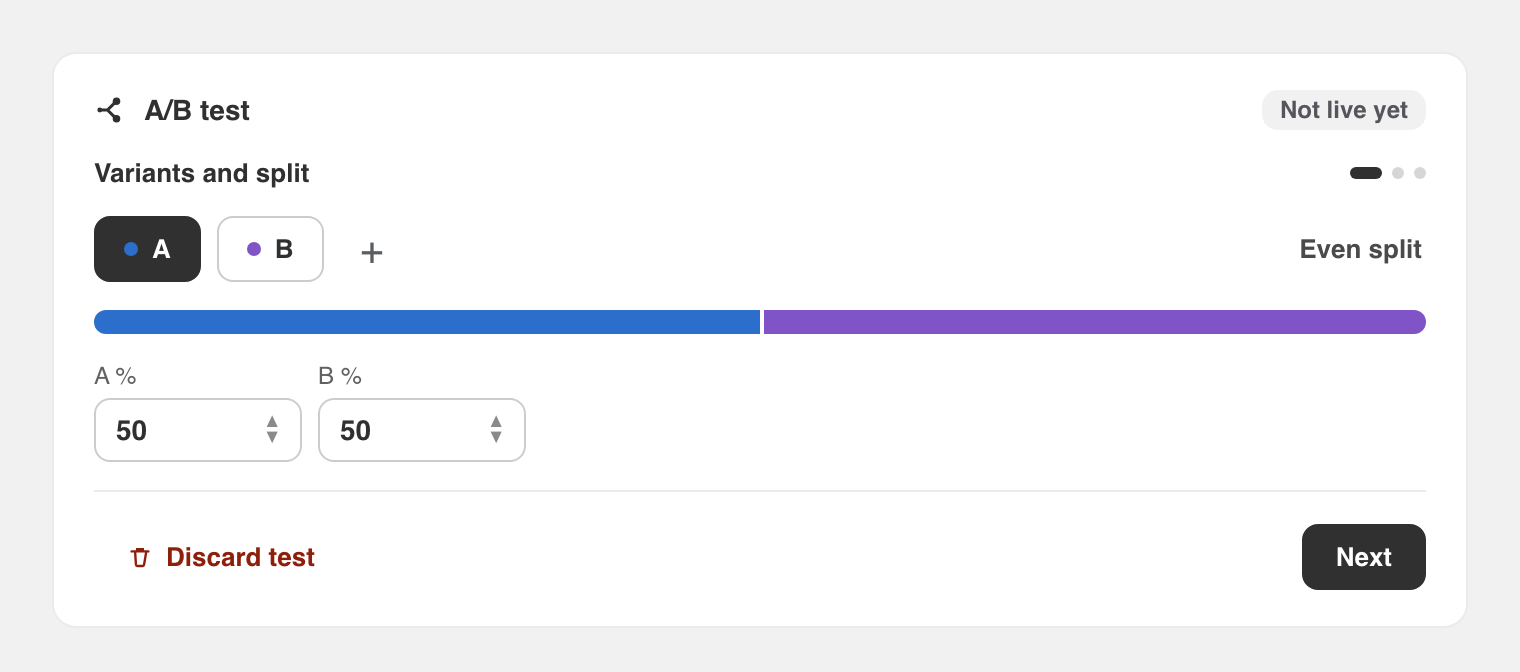
Why this is useful:
- You decide based on real orders from your own store, not on guesswork
- Changing only one thing per test tells you exactly what worked
Read the results
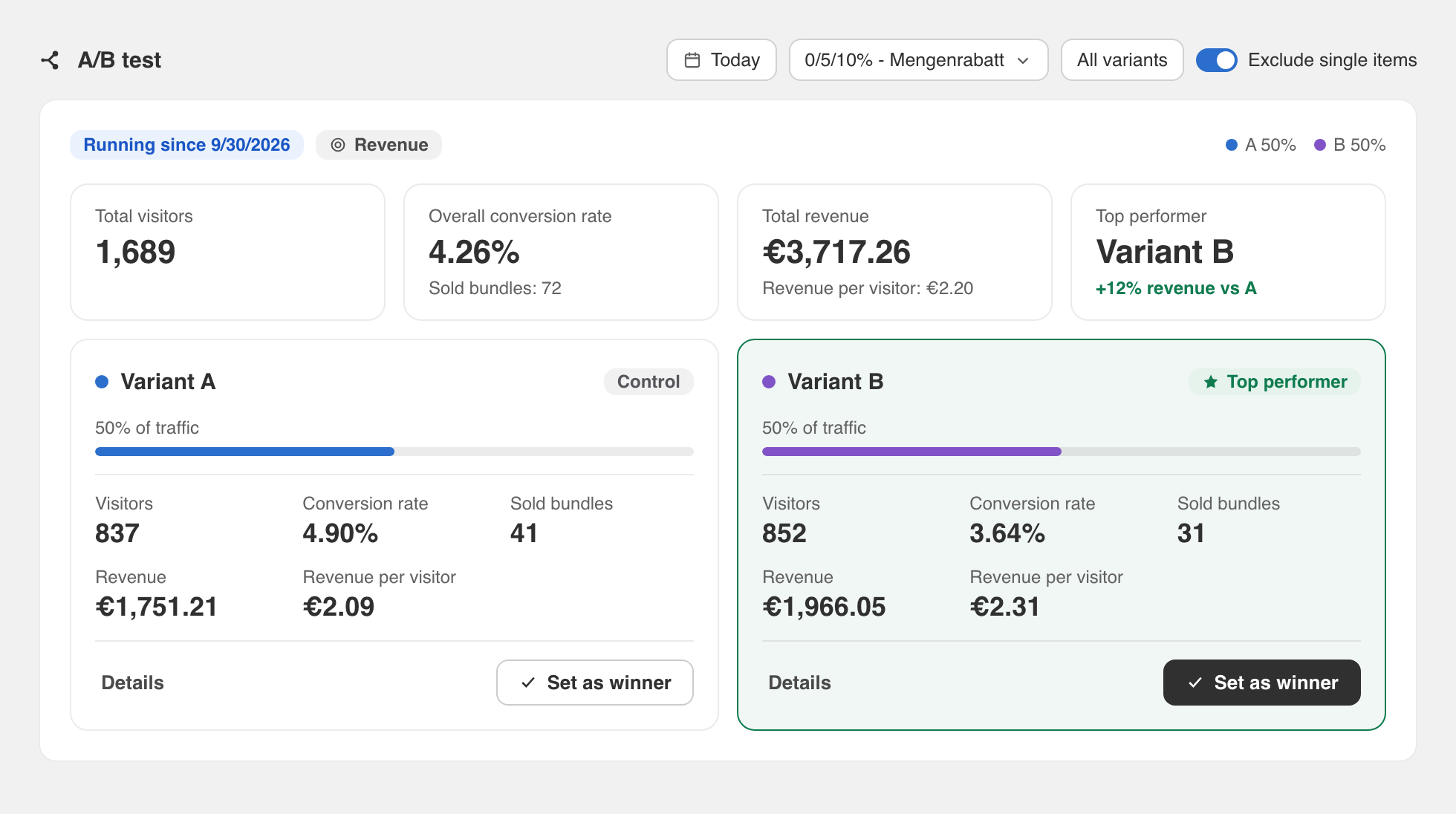
While the test runs, the results panel compares every variant side by side: visitors, conversion rate, sold items, revenue and revenue per visitor. The strongest variant is marked as the top performer, with the uplift against your control (variant A).
You can filter the results by date range and by variant, and you can pause or resume the test at any time without losing data.
Pick a winner
When you are confident, use "Set as winner" on the variant you want to keep. Sectionheroes keeps that variant live and archives the test in your history, so you always have a record of what you learned.
About the numbers
Visitors are counted only after they consent to analytics, which we read from Shopify's Customer Privacy API. Without consent nothing is stored and the visitor simply sees variant A. Revenue is shown net (after discounts, without shipping or tax), pulled directly from your Shopify orders.
See what's new in this release: A/B testing for your offers
Was this article helpful?